

OBS does not have a first-class audio-only output to Icecast. Three real methods exist: the FFmpeg Custom Output hack, BUTT plus a virtual cable, and the Radio Streamer plugin. Honest comparison and a recommended path.
Guides and notes
Practical setups, tradeoffs, and notes from building Radio Streamer. Aimed at OBS users running internet radio over Icecast, AzuraCast, and similar.
-
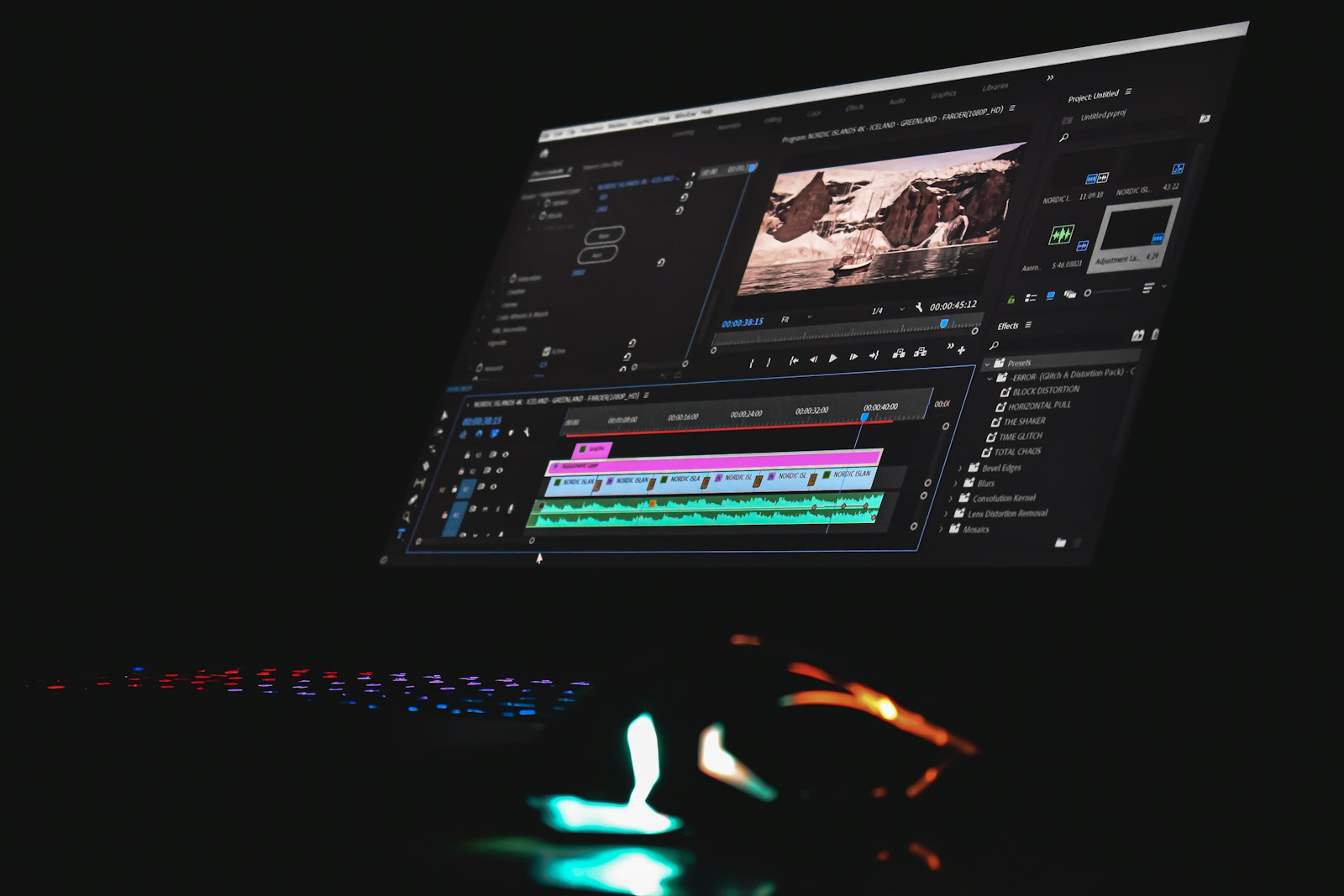 How to stream audio from OBS to Icecast
 -
 MP3 vs AAC vs Opus for Icecast streaming
Most stations default to MP3 because it works everywhere. That is fine, but it leaves quality and bandwidth on the table. Practical comparison with bitrate guidance and a decision framework.
-
 Record video and broadcast radio at the same time in OBS
OBS's main output streams to one destination at a time. Radio Streamer adds a second independent output that does not compete with the main encoder. How to set it up.
-
 Multi-track OBS audio: a separate mix for your radio broadcast
OBS Studio supports six audio tracks. Most users only ever touch Track 1. The other five are quietly powerful, especially when video and radio need different mixes.
-
 BUTT vs Radio Streamer: an honest comparison
Both push audio to Icecast. Different tools for different workflows. Side-by-side feature matrix, honest tradeoffs, and a migration path if you decide to switch.
-
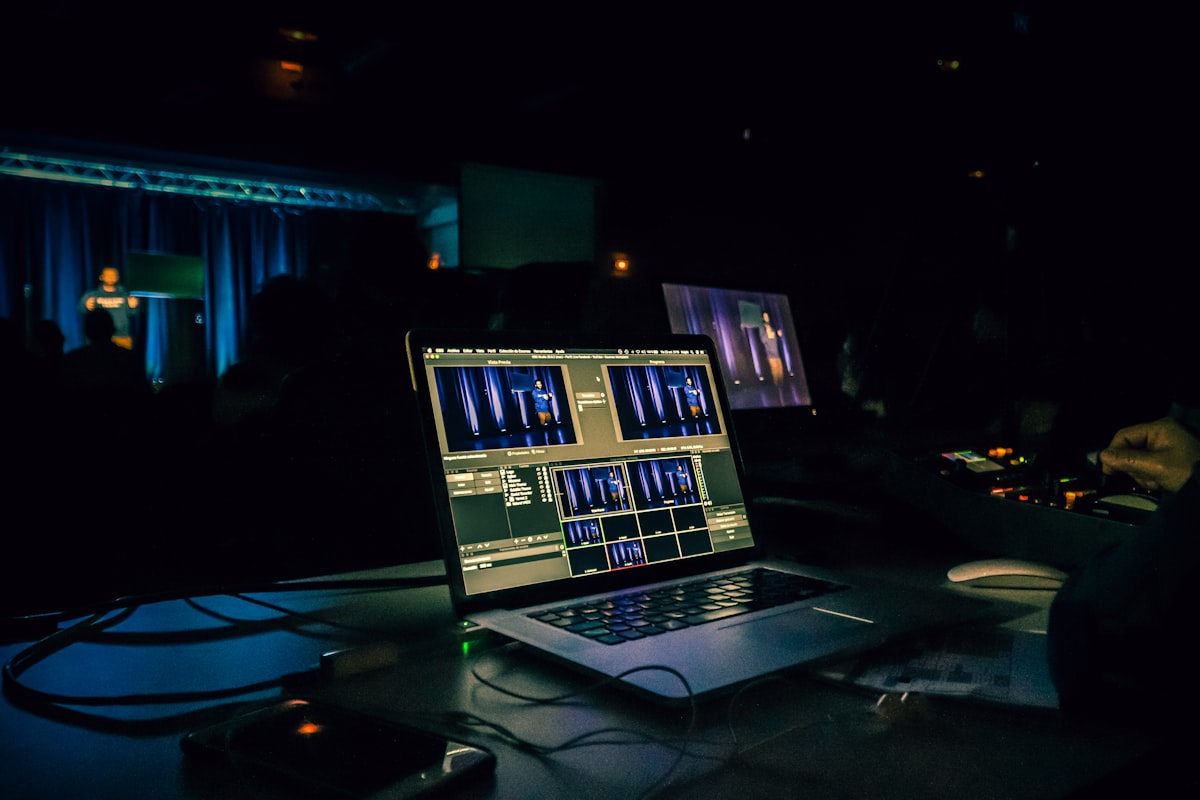 Stream OBS audio to a self-hosted Icecast 2 server
Skip the managed platforms. Install Icecast 2, edit icecast.xml, open the source port, and point Radio Streamer at it. The whole setup fits in a $5/month VPS.
-
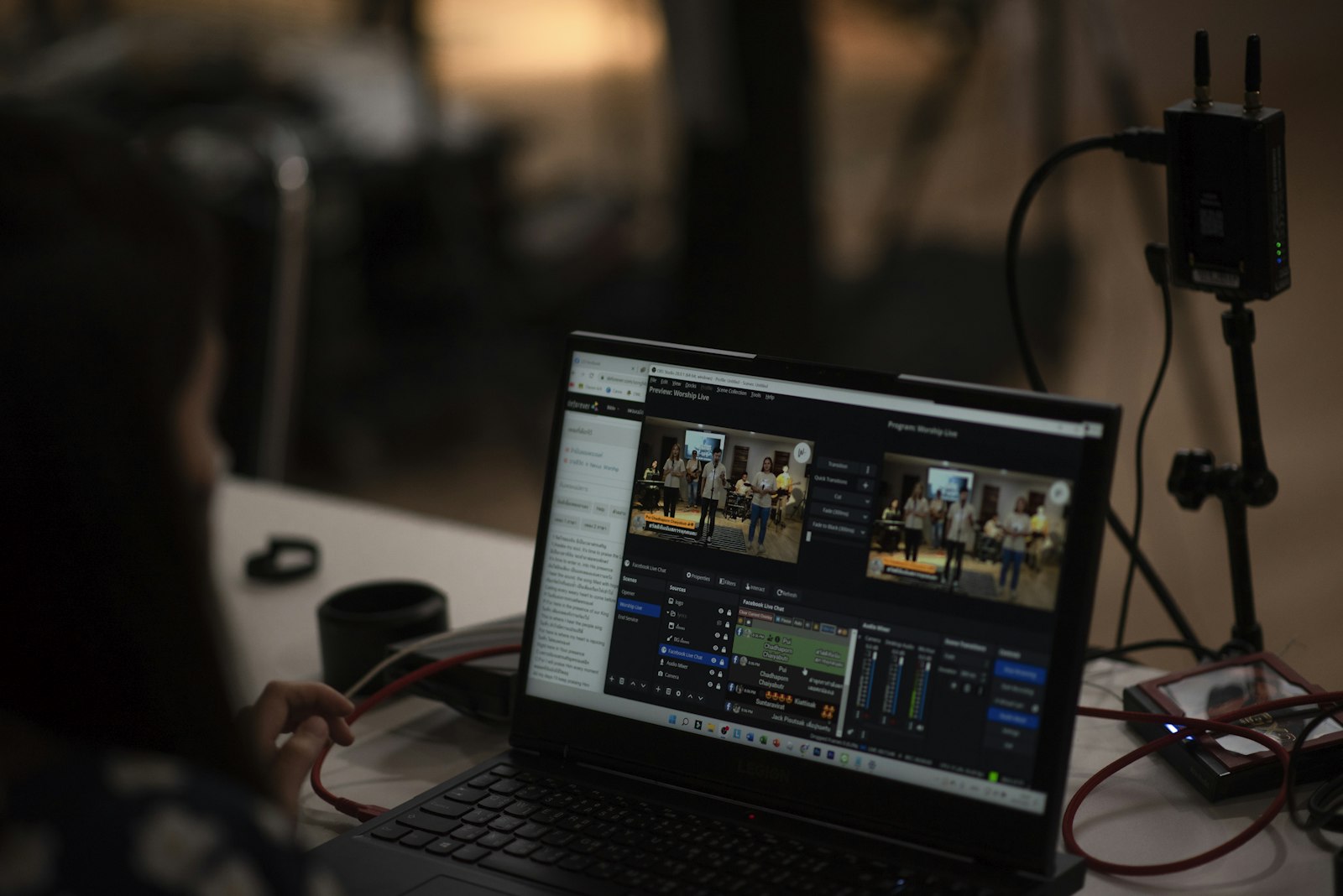 Stream OBS audio to AzuraCast over Icecast
A step-by-step walkthrough: get your AzuraCast streamer credentials, build the Icecast source URL, configure Radio Streamer in OBS, and verify the live source on the station dashboard.


